Thursday, April 30, 2015
Decoding the Top 4 Digital Visitors and Turning Them into Shoppers (Infographic)

10 Common Pitfalls of Product Launches and How to Avoid Them
Four Reasons Video Marketing on Instagram Is So Much Better Than on Vine
Wednesday, April 29, 2015
How to Leverage Your Product to Discover New Growth Channels
Why The Customers Who Don’t Convert Are Immensely Important
Exposing The Generational Content Gap: Three Ways to Reach Multiple Generations
Posted by AndreaLehr
With more people of all ages online than ever before, marketers must create content that resonates with multiple generations. Successful marketers realize that each generation has unique expectations, values and experiences that influence consumer behaviors, and that offering your audience content that reflects their shared interests is a powerful way to connect with them and inspire them to take action.
We’re in the midst of a generational shift, with Millennials expected to surpass Baby Boomers in 2015 as the largest living generation. In order to be competitive, marketers need to realize where key distinctions and similarities lie in terms of how these different generations consume content and share it with with others.
To better understand the habits of each generation, BuzzStream and Fractl surveyed over 1,200 individuals and segmented their responses into three groups: Millennials (born between 1977–1995), Generation X (born between 1965–1976), and Baby Boomers (born between 1946–1964). [Eds note: The official breakdown for each group is as follows: Millennials (1981-1997), Generation X (1965-1980), and Boomers (1946-1964)]
Our survey asked them to identify their preferences for over 15 different content types while also noting their opinions on long-form versus short-form content and different genres (e.g., politics, technology, and entertainment).
We compared their responses and found similar habits and unique trends among all three generations.
Here's our breakdown of the three key takeaways you can use to elevate your future campaigns:
1. Baby Boomers are consuming the most content
However, they have a tendency to enjoy it earlier in the day than Gen Xers and Millennials.
Although we found striking similarities between the younger generations, the oldest generation distinguished itself by consuming the most content. Over 25 percent of Baby Boomers consume 20 or more hours of content each week. Additional findings:
- Baby Boomers also hold a strong lead in the 15–20 hours bracket at 17 percent, edging out Gen Xers and Millennials at 12 and 11 percent, respectively
- A majority of Gen Xers and Millennials—just over 22 percent each—consume between 5 and 10 hours per week
- Less than 10 percent of Gen Xers consume less than five hours of content a week—the lowest of all three groups

We also compared the times of day that each generation enjoys consuming content. The results show that most of our respondents—over 30 percent— consume content between 8 p.m. and midnight. However, there are similar trends that distinguish the oldest generation from the younger ones:
- Baby Boomers consume a majority of their content in the morning. Nearly 40 percent of respondents are online between 5 a.m. and noon.
- The least popular time for most respondents to engage with content online is late at night, between midnight and 5 a.m., earning less than 10 percent from each generation
- Gen X is the only generation to dip below 10 percent in the three U.S. time zones: 5 a.m. to 9 a.m., 6 to 8 p.m., and midnight to 5 a.m.

When it comes to which device each generation uses to consume content, laptops are the most common, followed by desktops. The biggest distinction is in mobile usage: Over 50 percent of respondents who use their mobile as their primary device for content consumption are Millennials. Other results reveal:
- Not only do Baby Boomers use laptops the most (43 percent), but they also use their tablets the most. (40 percent of all primary tablet users are Baby Boomers).
- Over 25 percent of Millennials use a mobile device as their primary source for content
- Gen Xers are the least active tablet users, with less than 8 percent of respondents using it as their primary device
 2. Preferred content types and lengths span all three generations
One thing every generation agrees on is the type of content they enjoy seeing online. Our results reveal that the top four content types— blog articles, images, comments, and eBooks—are exactly the same for Baby Boomers, Gen Xers, and Millennials. Additional comparisons indicate:
- The least preferred content types—flipbooks, SlideShares, webinars, and white papers—are the same across generations, too (although not in the exact same order)
- Surprisingly, Gen Xers and Millennials list quizzes as one of their five least favorite content types

All three generations also agree on ideal content length, around 300 words. Further analysis reveals:
- Baby Boomers have the highest preference for articles under 200 words, at 18 percent
- Gen Xers have a strong preference for articles over 500 words compared to other generations. Over 20 percent of respondents favor long-form articles, while only 15 percent of Baby Boomers and Millennials share the same sentiment.
- Gen Xers also prefer short articles the least, with less than 10 percent preferring articles under 200 words
 However, in regards to verticals or genres, where they consume their content, each generation has their own unique preference:
- Baby Boomers have a comfortable lead in world news and politics, at 18 percent and 12 percent, respectively
- Millennials hold a strong lead in technology, at 18 percent, while Baby Boomers come in at 10 percent in the same category
- Gen Xers fall between Millennials and Baby Boomers in most verticals, although they have slight leads in personal finance, parenting, and healthy living
- Although entertainment is the top genre for each generation, Millennials and Baby Boomers prefer it slightly more than than Gen Xers do

3. Facebook is the preferred content sharing platform across all three generations
Facebook remains king in terms of content sharing, and is used by about 60 percent of respondents in each generation studied. Surprisingly, YouTube came in second, followed by Twitter, Google+, and LinkedIn, respectively. Additional findings:
- Baby Boomers share on Facebook the most, edging out Millennials by only a fraction of a percent
- Although Gen Xers use Facebook slightly less than other generations, they lead in both YouTube and Twitter, at 15 percent and 10 percent, respectively
- Google+ is most popular with Baby Boomers, at 8 percent, nearly double that of both Gen Xers and Millennials
 Although a majority of each generation is sharing content on Facebook, the type of content they are sharing, especially visuals, varies by each age group. The oldest generation prefers more traditional content, such as images and videos. Millennials prefer newer content types, such as memes and GIFs, while Gen X predictably falls in between the two generations in all categories except SlideShares. Other findings:
- The most popular content type for Baby Boomers is video, at 27 percent
- Parallax is the least popular type for every generation, earning 1 percent or less in each age group
- Millennials share memes the most, while less than 10 percent of Baby Boomers share similar content
 Marketing to several generations can be challenging, given the different values and ideas that resonate with each group. With the number of online content consumers growing daily, it’s essential for marketers to understand the specific types of content that each of their audiences connect with, and align it with their content marketing strategy accordingly.
Although there is no one-size-fits-all campaign, successful marketers can create content that multiple generations will want to share. If you feel you need more information getting started, you can review this deck of additional insights, which includes the preferred video length and weekend consuming habits of each generation discussed in this post.
Sign up for The Moz Top 10, a semimonthly mailer updating you on the top ten hottest pieces of SEO news, tips, and rad links uncovered by the Moz team. Think of it as your exclusive digest of stuff you don't have time to hunt down but want to read!
Solar Energy – A Brief History in the United States
Tuesday, April 28, 2015
How You Can Build an Email Marketing List as Quickly as Possible
Solar Power Battery – The Answer To Our Energy Needs
Monday, April 27, 2015
How to Market to Customers When The Free Trial is Over
These Five Handy Strategies Will Expand Your Marketing Influence
Saturday, April 25, 2015
Build Your Own Solar Panel System
Friday, April 24, 2015
The Art of eCommerce Upselling
#SocialSkim: Facebook Eyes Your Phone Calls, Plus 13 More Stories in This Week's Roundup
Thursday, April 23, 2015
Using Storytelling to Engage and Persuade (Infographic)
There’s More to Life than Analytics – Why Ignorance of Conceptual Models is Costing You Money
What You Need to Know Before Hiring a Solar System Installer
How to Ace the Google Mobile-Friendly Test & Score 100%
Posted by Adam.Whittles
It's likely that April 21, 2015, will forever be etched into every digital marketer's brain—this being the date that Google started expanding its use of mobile-friendliness as a ranking signal. You don't have to look very hard to find an article, best practice guide, or news item that has been influenced by the buzz around the announcement. In fact, as I write this post, there have already been two very popular posts on the main Moz blog highlighting this subject: an excellent post by Cindy Krum answering some important questions about the update, and a post by Billy Hoffman about optimizing your mobile site performance.
This post is going to take a closer look at Google's mobile-friendly test and highlight exactly what it means to pass or fail the test. I will also showcase two free tools that my good friend Kostas Voudouris and I built to help you analyze the mobile-friendliness of your site.
Google's mobile-friendly test
You are probably already familiar with Google's mobile-friendly test:

Aside from the "hints" on the left, you don't get that much feedback other than a "yes or "no" answer to whether your page is mobile-friendly. (Note the use of the word "page" rather than "site" as this update is a page-level update). You get even less information if your page passes the test: There are no handy tips on the left indicating areas that could still be improved, even if the page is deemed mobile-friendly.
However, what most of you may not already know is that behind the Google mobile-Friendly test is a plethora of interesting data, including:
- Mobile-friendly score/percentage
- Rule impact score for each of the areas affecting the mobile-friendly score/percentage
- Number of resources "fetched", including the respective URLs
- Number of resource fetch failures
You can now access this data for free by using the mobile-friendly checker Chrome extension and the bulk mobile-friendly checker at URLitor.com.
Using the mobile-friendly checker
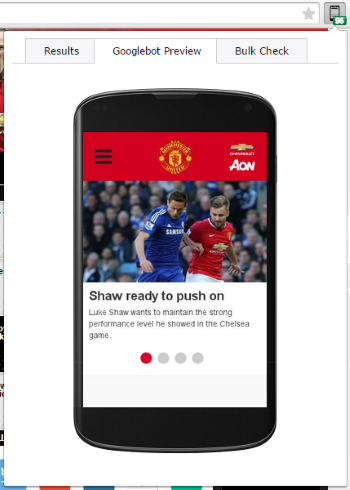
To get a quick snapshot of the data for each page that you visit, you can use the Chrome extension. It shows you the score, along with a handy color-coded signal indicating if your page is mobile-friendly (green) or not (red):

The extension also gives you the ability to view the page how Googlebot Mobile sees it, as well as integration with the bulk mobile-friendly checker hosted on URLitor.com.
The bulk checker is a powerful tool that allows you to check multiple pages at once and provides the ability to download all of this data into a spreadsheet:
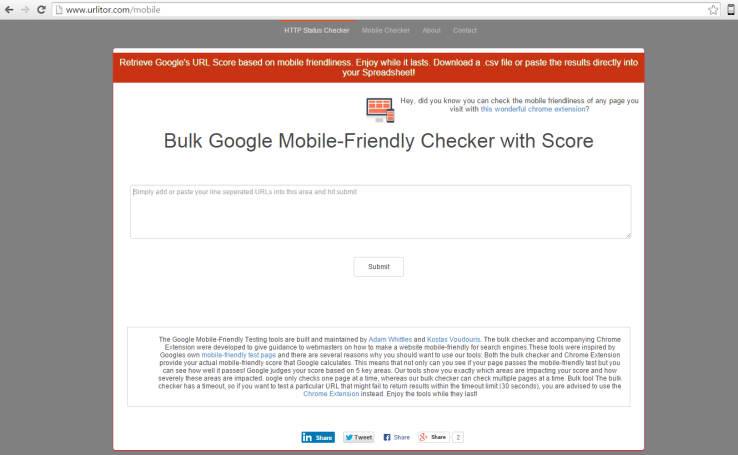
It's worth mentioning that you do not need an API key to use either of these tools. They are both free for anyone to use, and will continue to be free for as long as we are able to access the data from Google.
Now let's look at some of that data and how you can use it to your advantage.
Mobile rules explained
As far as we can see from the data, there are five rules that impact the mobile-friendly score you receive from Google:
1. Viewport Configuration - Triggered when Google detects your page does not specify a viewport, or specifies a viewport that does not adapt to different devices
2. Font Legibility - Triggered when Google detects that text in the page is too small to be legible
3. Use of Incompatible Plugins - Triggered when Google detects the use of plugins on your page
4. Content to Viewport - Triggered when Google detects that the page content does not fit horizontally within the specified viewport size, thus forcing the user to pan horizontally to view all the content
5. Size and Proximity of Links - Triggered when Google detects that certain tap targets (e.g., buttons, links, or form fields) may be too small or too close together for a user to easily tap on a touchscreen
We analyzed scores for a number of pages (> 4,000). It appears that if a page passes the test, there is a very close correlation between the mobile-friendly score and the rule impact scores. In other words, it seems that this is true:
Mobile-friendly score ≈ 100 - (total of rule impact scores)
However, this does not appear to be the case when we look at pages that do not pass the test. For example, the Associated Press homepage (http://ap.org) does not currently pass the mobile-friendly test:
Mobile-friendly score = 55
- Viewport Configuration = 10
- Font Legibility = 40
- Use of Incompatible Plugins = 0
- Content to Viewport = 25.033371548814813
- Size and Proximity of Links = 13.096301020408161
Total of rule impact scores = 88 (to the nearest whole number)
Therefore, using the above formula, the mobile-friendly score should be 12 rather than 55.
Maximum, minimum, & passing scores
As mentioned previously, we analyzed scores for over 4,000 pages. The pages we analyzed were the homepage of sites listed in the SEMrush Rank list of top domains for google.com database (http://www.semrush.com/info/rank.html).
From our analysis, we were able to identify that the passing score is 80 or above:

We also deduced that the maximum mobile-friendly score you can achieve is 100, given that all the pages passing with a score of 100 achieved a 0 score for each rule impact and that we did not witness any page scoring above 100.
The vast majority of pages that do not pass the test, appear to achieve a score between 58 and 67.
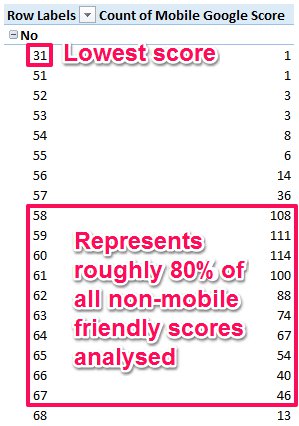
More importantly, as of April 17, taking into account the 4,000 pages we analyzed, roughly 75% of the pages were considered mobile-friendly.
While the minimum score possible for each rule impact is clearly 0, the maximum score possible for each rule is less clear. Let's look at each rule individually:
Viewport configuration
From the analysis so far, we've only witnessed four different scores for this rule: 0, 0.1, 3 and 10. It would therefore appear that the maximum score possible for this rule is 10 based on the data we have collected. If we revisit the conditions for this rule triggering "page does not specify a viewport, or specifies a viewport that does not adapt to different devices", it makes sense that there is not a larger range of values possible, given that you have either implemented the tag on the page, implemented the tag incorrectly or not implemented the tag at all.
Font legibility
The maximum score possible for this rule appears to be 40. Many of the pages we analyzed achieved this maximum score. As yet, we have not seen a page score higher than 40. We also performed a test on my own site to see if we could achieve a higher score. In order to test this, we created a page with some text and set the size of the font to 1 pixel (without a viewport configured). This rule is supposed to trigger when the text on the page is too small so we experimented with smaller font-sizes but could not reach a score higher than 40 for this rule.
Use of incompatible plugins
This is perhaps the most difficult rule to ascertain a maximum value. This is likely due to the fact that very few pages we analysed were affected by this rule (1% of pages affected). At first, it appeared that those pages affected did not score above 3.9. However, with an increased dataset, we found one page scored 34.99456, and another page scored a massive 178.
The page that received a score of 178 is an adult-themed site (hence I won't share the URL here) and the page receiving a score of 34.99456 is a popular online Mahjong site (http://www.247mahjong.com/). These sites are clearly using a lot of plugins, whether they are for for video or gaming content.
Interestingly, the majority of pages affected achieved a score between 3 and 3.9. (Oddly, no page scored between 0 and 3 for this rule). Having examined a number of these pages, there are a number of different types of plugins that have been used, including:
- Hit/stat counters
- Flash images/logos and slideshows
You can generally tell where the incompatible plugins are by either looking at how Googlebot sees the page, or by performing some simple searches within the source code of the page.
Content to viewport
As with the font legibility rule, there appears to be a clear maximum score for this rule. From the pages analysed, it would appear that the maximum score possible is 50. However, unlike the font legibility rule (and more similar to the use of incompatible plugins rule), no page achieved a score between 0 and 3.
Size & proximity of links
This is the rule that appeared to affect more pages than any other rule. In fact, almost 83% of the pages analyzed were affected by this rule, so you could argue that this is the most common issue. In terms of a maximum score, this is a little harder to determine as only one page scored 30 (http://barnesandnobleinc.com/) with every other page affected, scoring less. I also performed a test by creating lots of tiny links close together on the page and could not achieve a score above 30 for this rule.
In the next section, we'll take a look at a few examples of how to fix some of these issues.
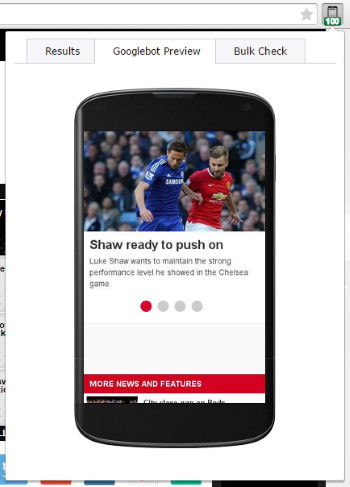
The homepage of the premier league football club currently passes the mobile-friendly test with a respectable score of 96:
www.ManUtd.com (mobile-friendly score = 96)
This is how Googlebot currently sees the homepage:
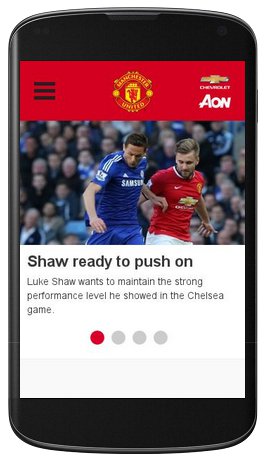
Where it falls short of a perfect score of 100 is with the use of incompatible plugins rule. Currently, it receives a score of 3 for that rule impact, which has reduced the mobile-friendly score to 96.
Looking at the site and the source code, there is a header image/banner that uses Flash.

When we remove this header from the test page on my site, the score jumps up to 100:
| Before | After |
|
|
As already mentioned, the most common issue affecting pages if the size and proximity of links rule impact. The homepage of the Ubuntu Linux operating system also suffers slightly from this issue, which is resulting in a mobile-friendly score just shy of the 100 mark.
www.Ubuntu.com (mobile-friendly score = 99)
This is interesting given that at first glance the Ubuntu site has a well designed responsive site for mobile devices. However, a common issue we've noticed with responsive sites is that footer links tend to still be too small for mobile devices. Looking at the Ubuntu homepage, we would definitely say that the footer links are a little bit too small for my fingers:

It's no surprise then that once we removed the footer from the test version of the Ubuntu homepage, it received a score of 100.
Conclusion
There is no real telling what will happen as the mobile rollout continues. We have been told it will be bigger than Panda and Penguin, and many are already dubbing it the Mobilegeddon or Mobilepocalypse.
Please note that while we are arming you with the knowledge to achieve a 100 passing score on the Google mobile-friendly test, this does not guarantee your rankings on mobile devices will suddenly rocket into the stratosphere. We are merely giving you the ability to identify and fix any issues that Google deems as important when classifying pages as mobile-friendly.
The next time you run the test, check to see if your score is close to 80, as you could “turn” your website mobile-friendly just by changing few lines of code on your template. Again, if your website passes the test, don’t stop there. Aim for 100. We don’t know how much Google is looking into the actual score, but at least you will be providing a better user experience for your visitors.
Sign up for The Moz Top 10, a semimonthly mailer updating you on the top ten hottest pieces of SEO news, tips, and rad links uncovered by the Moz team. Think of it as your exclusive digest of stuff you don't have time to hunt down but want to read!
Wednesday, April 22, 2015
Pros and Cons of Employing Solar Powered Lighting
Customer Acquisition Cost: The One Metric That Can Determine Your Company’s Fate
Marketing, PR, Social, Advertising Are All Intertwined: Geoff Livingston on Marketing Smarts [Podcast]
Americas Electric Grid Left Unprotected!
Tuesday, April 21, 2015
What Are Solar Homes?
Don’t Do A Redesign! Learn Why Evolution Beats Revolution
Energy Efficiency: The Impact Of Renewable Power
Has Google Gone Too Far with the Bias Toward Its Own Content?
Posted by ajfried
Since the beginning of SEO time, practitioners have been trying to crack the Google algorithm. Every once in a while, the industry gets a glimpse into how the search giant works and we have opportunity to deconstruct it. We don’t get many of these opportunities, but when we do—assuming we spot them in time—we try to take advantage of them so we can “fix the Internet.”
On Feb. 16, 2015, news started to circulate that NBC would start removing images and references of Brian Williams from its website.
This was it!
A golden opportunity.
This was our chance to learn more about the Knowledge Graph.
Expectation vs. reality
Often it’s difficult to predict what Google is truly going to do. We expect something to happen, but in reality it’s nothing like we imagined.

Expectation
What we expected to see was that Google would change the source of the image. Typically, if you hover over the image in the Knowledge Graph, it reveals the location of the image.

This would mean that if the image disappeared from its original source, then the image displayed in the Knowledge Graph would likely change or even disappear entirely.
Reality (February 2015)
The only problem was, there was no official source (this changed, as you will soon see) and identifying where the image was coming from proved extremely challenging. In fact, when you clicked on the image, it took you to an image search result that didn't even include the image.
Could it be? Had Google started its own database of owned or licensed images and was giving it priority over any other sources?
In order to find the source, we tried taking the image from the Knowledge Graph and “search by image” in images.google.com to find others like it. For the NBC Nightly News image, Google failed to even locate a match to the image it was actually using anywhere on the Internet. For other television programs, it was successful. Here is an example of what happened for Morning Joe:

So we found the potential source. In fact, we found three potential sources. Seemed kind of strange, but this seemed to be the discovery we were looking for.
This looks like Google is using someone else’s content and not referencing it. These images have a source, but Google is choosing not to show it.
Then Google pulled the ol’ switcheroo.
New reality (March 2015)
Now things changed and Google decided to put a source to their images. Unfortunately, I mistakenly assumed that hovering over an image showed the same thing as the file path at the bottom, but I was wrong. The URL you see when you hover over an image in the Knowledge Graph is actually nothing more than the title. The source is different.

Luckily, I still had two screenshots I took when I first saw this saved on my desktop. Success. One screen capture was from NBC Nightly News, and the other from the news show Morning Joe (see above) showing that the source was changed.

(NBC Nightly News screenshot.)
The source is a Google-owned property: gstatic.com. You can clearly see the difference in the source change. What started as a hypothesis in now a fact. Google is certainly creating a database of images.
If this is the direction Google is moving, then it is creating all kinds of potential risks for brands and individuals. The implications are a loss of control for any brand that is looking to optimize its Knowledge Graph results. As well, it seems this poses a conflict of interest to Google, whose mission is to organize the world’s information, not license and prioritize it.
How do we think Google is supposed to work?
Google is an information-retrieval system tasked with sourcing information from across the web and supplying the most relevant results to users' searches. In recent months, the search giant has taken a more direct approach by answering questions and assumed questions in the Answer Box, some of which come from un-credited sources. Google has clearly demonstrated that it is building a knowledge base of facts that it uses as the basis for its Answer Boxes. When it sources information from that knowledge base, it doesn't necessarily reference or credit any source.
However, I would argue there is a difference between an un-credited Answer Box and an un-credited image. An un-credited Answer Box provides a fact that is indisputable, part of the public domain, unlikely to change (e.g., what year was Abraham Lincoln shot? How long is the George Washington Bridge?) Answer Boxes that offer more than just a basic fact (or an opinion, instructions, etc.) always credit their sources.
There are four possibilities when it comes to Google referencing content:
- Option 1: It credits the content because someone else owns the rights to it
- Option 2: It doesn't credit the content because it’s part of the public domain, as seen in some Answer Box results
- Option 3: It doesn't reference it because it owns or has licensed the content. If you search for “Chicken Pox” or other diseases, Google appears to be using images from licensed medical illustrators. The same goes for song lyrics, which Eric Enge discusses here: Google providing credit for content. This adds to the speculation that Google is giving preference to its own content by displaying it over everything else.
- Option 4: It doesn't credit the content, but neither does it necessarily own the rights to the content. This is a very gray area, and is where Google seemed to be back in February. If this were the case, it would imply that Google is “stealing” content—which I find hard to believe, but felt was necessary to include in this post for the sake of completeness.
Is this an isolated incident?
At Five Blocks, whenever we see these anomalies in search results, we try to compare the term in question against others like it. This is a categorization concept we use to bucket individuals or companies into similar groups. When we do this, we uncover some incredible trends that help us determine what a search result “should” look like for a given group. For example, when looking at searches for a group of people or companies in an industry, this grouping gives us a sense of how much social media presence the group has on average or how much media coverage it typically gets.
Upon further investigation of terms similar to NBC Nightly News (other news shows), we noticed the un-credited image scenario appeared to be a trend in February, but now all of the images are being hosted on gstatic.com. When we broadened the categories further to TV shows and movies, the trend persisted. Rather than show an image in the Knowledge Graph and from the actual source, Google tends to show an image and reference the source from Google's own database of stored images.
And just to ensure this wasn't a case of tunnel vision, we researched other categories, including sports teams, actors and video games, in addition to spot-checking other genres.
Unlike terms for specific TV shows and movies, terms in each of these other groups all link to the actual source in the Knowledge Graph.
Immediate implications
It’s easy to ignore this and say “Well, it’s Google. They are always doing something.” However, there are some serious implications to these actions:
- The TV shows/movies aren't receiving their due credit because, from within the Knowledge Graph, there is no actual reference to the show’s official site
- The more Google moves toward licensing and then retrieving their own information, the more biased they become, preferring their own content over the equivalent—or possibly even superior—content from another source
- If feels wrong and misleading to get a Google Image Search result rather than an actual site because:
- The search doesn't include the original image
- Considering how poor Image Search results are normally, it feels like a poor experience
- If Google is moving toward licensing as much content as possible, then it could make the Knowledge Graph infinitely more complicated when there is a “mistake” or something unflattering. How could one go about changing what Google shows about them?
Google is objectively becoming subjective
It is clear that Google is attempting to create databases of information, including lyrics stored in Google Play, photos, and, previously, facts in Freebase (which is now Wikidata and not owned by Google).
I am not normally one to point my finger and accuse Google of wrongdoing. But this really strikes me as an odd move, one bordering on a clear bias to direct users to stay within the search engine. The fact is, we trust Google with a heck of a lot of information with our searches. In return, I believe we should expect Google to return an array of relevant information for searchers to decide what they like best. The example cited above seems harmless, but what about determining which is the right religion? Or even who the prettiest girl in the world is?

Questions such as these, which Google is returning credited answers for, could return results that are perceived as facts.
Should we next expect Google to decide who is objectively the best service provider (e.g., pizza chain, painter, or accountant), then feature them in an un-credited answer box? The direction Google is moving right now, it feels like we should be calling into question their objectivity.
But that’s only my (subjective) opinion.
Sign up for The Moz Top 10, a semimonthly mailer updating you on the top ten hottest pieces of SEO news, tips, and rad links uncovered by the Moz team. Think of it as your exclusive digest of stuff you don't have time to hunt down but want to read!
Monday, April 20, 2015
Reasons Why Solar Energy Is The Answer
How Great Startups Build Brands With The Right Words
Email Etiquette: Do Consumers Like Humor and Informality?
Make Your Business Ready for an Electricity Blackout
5 Steps to Content Optimization
Sunday, April 19, 2015
Ways To Make Your Home More Energy Efficient
The Basics and Benefits of Solar Pool Heating
Saturday, April 18, 2015
It’s All Regarding Solar Power Info
7 Tips to Help SaaS Companies Get More Customers and Greater Market Share
What Are 3 Advantages Of Solar Energy?
Friday, April 17, 2015
Stop Bidding on These Brand Keywords in PPC
Posted by PPCKirk
Whatever your title in search engine marketing is, you likely have an opinion on brand term bidding for pay-per-click (PPC) keywords. There has been much discussion—and much written—on this topic recently. (Actually, there are 386,000 Google results for "should I bid on brand keywords in AdWords" at the time of this writing.)
For those unfamiliar with PPC, the reason for the discussion and *gasp* debate is fairly simple:
- Those without an investment in paid search tend to hesitate spending money on traffic that could have come for "free".
- Those with an investment in paid search tend to prefer the inclusion of high-converting brand terms with high quality scores in their PPC accounts (and PPC reports).
There is a time to bid on brand keywords
No, I’m not a whistle-blower on paid search. I'm not here to reveal a conspiracy that all search engine marketers (SEMs) have signed in blood to deceive the masses about the benefits of brand bidding for the sake of the industry.

(Source of images)
In fact, I generally believe the pro-brand bidding arguments raised by my fellow PPCers are compelling and insightful. If you are unfamiliar with these main arguments, check out these articles:
- Brand Terms in Bing Ads: To Bid or Not to Bid? by Bing Ads
- 5 Reasons to Start Bidding on Branded Terms (If You Aren’t Already) by Kayla Kurtz of PPC Hero
- Five Reasons to Bid on Branded Terms in PPC by Erin Sagan of Wordstream
- Incremental Clicks Aspect of Search Advertising (PDF) by Google
Now, if you read those articles and still believe you should always avoid bidding on brand terms, I have one question for you:
If you don’t specifically bid on brand keywords, do you then purposefully exclude all forms of brand keywords from all of your PPC campaigns?
If your answer is no, then I’m confused. If you don’t exclude all of your brand keywords from all your campaigns, then your ads will show for brand terms whether you want them to or not.
Let’s say you (Polly) sells purple packs of pickled pumpernickel. You purposefully avoid bidding on any brand keywords, but you are bidding on modified broad match +pickled +pumpernickel, and maybe even phrase match "pickled pumpernickel". (If PPC match types are new to you, read this Google Help article: Using Keyword Matching Options.)
Here's the problem. If someone types in "polly's packs of pickled pumpernickel", which includes your brand name (on which you are NOT bidding), then your ads will still appear… on a branded keyword.
Oops.

If your answer is yes, however, I will first applaud you. Congratulations, you have followed your argument to its logical conclusion.
But after I heartily slap you on your back, I will caution you to rethink your strategy. You decide that you “ain’t stupid 'nough to waste hard-earned cash” on brand terms, so you add them all as negatives into all of your campaigns.
Unfortunately, there are three glaring weaknesses with this strategy:
- If you added them in as [exact] match negatives alone, any brand term that a customer queries into the Googs will now be shuffled into your non-brand ad groups, and you will pay a far higher cost-per-click (CPC) for that non-branded query than you would have had you just bid on brand in the first place.
- If you added them in as broad or phrase match negatives, you will actually be excluding your brand from any brand auction, and you wouldn’t even know you missed it since it won't appear in your search query report. All those competitors bidding on "pickled pumpernickel" will have a heyday with those top three SERP slots on your branded query.
Oops.
Weakness No. 2 above actually gets worse with e-commerce sites, thanks to the growing power of Google Shopping in the SERPs. If you completely pull your brand from your account, then you are allowing far more advertisers to show in a highly clickable format above your organic results. In the example below, had Home Depot excluded its brand from Google Shopping, there would have been five highly visual competitors' ads appearing above their first organic result.

(Side note: Regarding Google Shopping brand traffic, Martin Roettgerding details a brilliant strategy by which you can separate brand queries from non-brand queries in Google Shopping campaigns. It's worth a read if you manage e-commerce PPC: Taking Google Shopping to the Next Level.)
There is a time to NOT bid on brand keywords (NBBK)
Charts, graphs, and arguments are great. In fact, as I noted above, there are many convincing charts, graphs, and arguments for why a PPCer should bid on brand terms.
But unsurprisingly, I’ve found SMB owners and general managers to be less-than-impressed with averages, should-be's and theories when it comes to paying for terms they could have gotten for free.

After all, when it comes right down to it, we are providing a service for real people with real businesses who feel the pain of every dollar in their marketing budget. This kind of emotional proximity can make things a little more difficult than simply showing a graph about incremental value.
Maybe I’m the only one who has ever received pushback from an SMB client when I pitch brand bidding, but I feel that I’ve only ever seen PPC articles that talk about brand bidding solely in a positive light. So my question for us PPCers now is this: Is it ALWAYS best to bid on brand keywords?
For instance, look at this example of a local brand here in Billings. (Shockingly, we do have coffee shops in Montana). Would you bid on this [brand] term?

After multiple conversations with concerned SMB clients, I have come to the opinion that it is not always best to bid on all brand keywords.
To elaborate, I do not make a practice of bidding on brand keywords that match all of the following criteria:
- The [brand keyword] is exact match - If a keyword is a modified broad match or phrase, there is always a chance that someone will type in your brand with some random long-tail phrase you never considered but that a competitor is bidding on. In that case, you want to appear in that SERP so they don't win the day. Because of this regularly occurring scenario, I consider not bidding on exact match terms.
- The [brand keyword] has no competition – On one hand, even if your brand dominates organic, those three top competitor ads are tough to argue with, especially with mobile. Have you seen your mobile results lately for your brand? You might be horrified to see how much of that first tiny little page is taken up by “their” ads. On the other hand, if there is no ad competition then the competition argument for bidding on that term loses ground fast. Don't forget that in Adwords, a competitor could be excluding your location, have a capped budget during the time you are searching or be ineligible to show for your query for some other reason at the time and place you are searching. Because of this, it can be helpful (if you have the budget) to use third-party software that monitors competition bidding on your brand terms.
- The [brand keyword] first page of organic results is dominated by the client’s brand – Admittedly, a client's brand is likely going to be strong enough to dominate organic real estate on the first page of the SERPs, but some local businesses don’t control it all. This situation requires you to make a judgment call.
Please note that I said ALL of these criteria must be met. I bid on brand terms unless all three of these criteria are met.
My NBBK strategy
It would be remiss of me to leave you without giving you direction on how to implement my NBBK strategy in your SMB PPC accounts. Here is how I (generally) set up brand campaigns for my SMB clients:

Note 1 - The (E) stands for exact match, (BM) stands for modified broad match, and (P) stands for phrase match.
Note 2 – While some have completely eliminated phrase match from their strategy, I still use phrase in its own ad group for brands with two words in their core brand name. This is especially important if the two-word brand name can mean something completely different if those words are not used together.
Note 3 – Add all exact match terms in as mirrored negatives into the other non-exact ad groups. This is an essential part of the strategy, since it will prevent negatives that you do not want to bid on from being shown with other match types.

Note 4 – Pause all ad groups or keywords that meet the three previous NBBK requirements. In this example, I paused the brand (E) and buy brand (E) ad groups. Now, if someone types in your brand exactly, your ads will not appear; but if they type in your brand any other way, your ads will appear for all the other match types.
Final thoughts
With my strategy for (not) bidding on all brand keywords, you really can have your cake and eat it, too. This will allow you to engender trust from your client, while allowing to bid on those treasured brand keywords so that you can smile happily at your higher quality scores and increased conversions.
What about big brands?
I think it’s helpful to point out here that there is admittedly a big difference between an SMB brand and a national brand. Many larger brands have multiple competitors bidding on their [brand] keywords, so this strategy is moot in those instances. However, I still think brand bidding is a good idea in those instances to avoid losing your loyal customers to a competitor’s ad.
Where do I start?
You might realistically inquire, "What am I supposed to do, start guessing at which brand terms I shouldn't be bidding on? This seems like a lot of work." On the contrary, I've found identifying [brand] terms for filtering to be a fairly simple practice that adds minimal extra time to creating my brand campaigns.
Now, here is how I suggest you go about finding what not to target:
- Manually research the [brand] core terms. These will be the most likely terms for you to filter out.
- Identify the top traffic brand terms in the client's Google Analytics > Acquisition > Search Engine Optimization > Queries report, and manually research those to consider excluding as [brand] if they meet all three criteria detailed above.
- Don't stress out about it. If you do your due diligence on those first two steps, then you will probably pick up the majority of terms you need to filter. When you run across them in the future, while mining your brand campaign search query report, you can always add more.
Why should you do this?
Why go through the hassle? Why not just bid on these, collect the bump to the account's quality score, and move on with life?
Because you are advertising for a real SMB company, run by real people who care about real money. This point cannot be undervalued.
- If you are an agency, your client will be shocked that you are willing to lose conversions from the PPC pile (even though that's hardly a reality anymore now that we better understand attribution, right?) for the betterment of the company as a whole.
- If you are in-house, your boss will be delighted that you are thinking of creative ways to maximize budget and conversions, therefore demonstrating that you also care about the company into which he has poured his life.
This speaks volumes to SMB managers and owners. They have tight budgets and tighter fists. So if you present a strategy to help their brand be found without mindlessly bidding on every brand term that comes along, they will love you for it.
What about you? What would you add to this strategy? Do you have any concerns about it? Please share your thoughts in the comments below.
Sign up for The Moz Top 10, a semimonthly mailer updating you on the top ten hottest pieces of SEO news, tips, and rad links uncovered by the Moz team. Think of it as your exclusive digest of stuff you don't have time to hunt down but want to read!
Why Switch to Full Potential of Solar Power?
Should You Delete Your Business Facebook Page?
Increase the Persuasive Momentum of Your Conversion Funnels
Clear Explanation of Home Solar Power Generation
Thursday, April 16, 2015
The Beginner’s Guide to Customer Feedback
Solar Energy – A Few Things You Need To Know
How Effective Is Your Content Strategy?
Wednesday, April 15, 2015
Solar Panels: A Technical Primer
How Desktop Applications Like Backblaze Can Use KISSmetrics
A General Perspective on Wind Power
How to Write Emails That Get Opened Every Time
Posted by MoosaHemani

In 2012, I wrote a detailed post on Moz.com on how to write emails that get better response rates. Since then, things have changed incredibly within the digital marketing spectrum. Outreach and communication is my favorite subject, so I ran some tests and experiments to find out what has changed in regards to that in SEO and link building.
As a result, I found out that if you are using email templates, you will receive low response rates (or no responses at all); but even if you are writing customized emails, your response rates may have dropped in the past few years.
In this post, I'll share what's likely behind this major change, and what you should alter in your email and outreach process to increase response rates.
Level up personalization

Personalization is the main tenet of any email you send to anyone, for any purpose. However, personalization becomes much more important when you send a large number of customized emails to people you may or may not know.
If you are going to use a generalized email (write one email and send it to 100 people), the response rate will probably be zero. Most bloggers, journalists and people in general are busy, so they tend to ignore these messages altogether.
The basics of email personalization look something like this:
1. Use the recipient's name in the email
2. Talk on common grounds
3. Make your point clear
4. Keep it short
Those are good places to start; but if you really want your emails to get opened and deliver the results you hope for, you're going to have to think beyond the basics.
Let me share my ideas for smartly stepping up your email game.
Personalize the subject line
It is, indeed, important to use a recipient’s name in the email. But what if the person didn't open the email? My idea is to use the name of the recipient in the subject line, which is likely to get their attention and cause them to highly consider opening your email.
| Example: Hey Jeff, would love to talk about your latest blog post. |
Go beyond the first name
While using the first name in an email is certainly a sign that you have researched the recipient, including information that suggests you know where they are geographically based is even better.
| Example: Hello Tony, Hope everything is going fine with you! I was actually collecting some data about UK SEOs and the first name that came to my mind was yours. :) |
Incorporate latest happenings
Incorporating elements regarding the latest news and happenings, particularly if they are likely to impact the recipient, can also be invaluable. This could have the effect of making them feel you've spent time getting to know them, their work and their interests.
| Example: Hello Jason, Hope everything is fine with you. I am sure you must be busy with stuff related to the SEO Secrets conference with SEO Hacker. If I was in the Philippines, I would have attended that. |
To get the responses you need, you must go beyond the first name of the recipient and make them feel like you share a more personal connection.
You scratch my back, I'll scratch yours

When you ask someone for a favor, no matter how small, you recognize the commitment of time, money and effort the favor "costs" on their end. If you are not going to offer something equally valuable in return, your response rate will be impacted, and you will have likely negated the chance to build a lasting relationship.
Always keep Robert Cialdini’s principle of reciprocation in mind when conducting outreach, for in the online world, it all about give and take.
For instance, if you are asking for a writing opportunity, assure the blogger that your content quality will be top-notch and that you will promote it in such a way that they will receive eyeballs and traction beyond what they might normally expect.
If you are asking for content placement, explain to the email recipient how it will benefit their audience.
Also, if you are calling bloggers to cover an event, let them know what's in it for them (e.g., networking and free food.)
Recently, I was talking to Matt Janaway, VP of Search & Digital at The Workplace Depot, and he drove home the importance of reciprocity:
“Perception of value is key. You have to provide the person you are reaching out to with the perception that you are helping them out as much as they are helping you out—if not more. It’s a trade-off that both parties have to be happy with. If you want them to do you a favour by posting your content, then you have to show them how important this is for you and give them something in return. It could be that the article you give them is of an incredible quality, but you could also provide value in the form of advice, a tip, a gift, an introduction to somebody you already have a relationship—or even an I.O.U. Be creative, but always try to ensure you offer value to the person you are trying to build a bond with, otherwise they will see it as a one-sided relationship.”

Find topic-specific prospects
When you are sending outreach emails for your link building campaign, it is very important to make sure you're clear on who you're targeting.
Look beyond industry-specific blogs and begin targeting the blogs closely related to your topic. Let’s say my topic is on WP Hosting and its impact on SEO. In this case, I should target blogs that cover WP hosting instead of looking for blogs that talk about SEO.
Go slow, step by step
Formerly, it was my practice to keep emails short and to the point.
An idea I learned from Brian Dean is to go slow and go step by step.
Instead of sending everything in one email, try to send an email that talks about the recipient and the scope of your content. Instead of sharing the link, seek their permission first.
I witnessed a 3% bump in my email response rate during my first test of this method.
There are obviously other elements to consider when crafting and sending outreach emails, but mine can be summed up rather succinctly:
1. Send only emails that are short and to the point.
2. Double check grammar and punctuation before hitting the send button.
3. Make sure your subject link is personalized and mobile-friendly.
4. Always give the recipient a reason to reply.
Do you send outreach emails for link building? What responses are you getting? Please share your experiences with us in the comment section.
Sign up for The Moz Top 10, a semimonthly mailer updating you on the top ten hottest pieces of SEO news, tips, and rad links uncovered by the Moz team. Think of it as your exclusive digest of stuff you don't have time to hunt down but want to read!
Tuesday, April 14, 2015
Why Consider Green Building Design
Foursquare Unveils Pinpoint for Location-Based Ad Targeting
Monday, April 13, 2015
Considerations in Investing in a Solar Panel System
3 Marketing Hacks for the Struggling Startup
How to Use Quizzes for Lead Generation
Sunday, April 12, 2015
Solar Power Can Save You Money and Help The Environment
Which Type of Solar Panel Is for You?
Saturday, April 11, 2015
6 Reasons You Should Be Passionate About Solar Power
7 Mistakes That Will Make People Unfollow You on Twitter
What Are the Disadvantages of Solar Energy?
Friday, April 10, 2015
Cool Your Home With Heat, Get Solar Air Conditioning
The Must-Have Elements of a Great Support Portal
Thursday, April 9, 2015
Why Larger Solar Power Systems Are Better
United Electrical World Smart Grid
8 A/B Split Tests That Made Shocking Discoveries
Why You Should Use Analytics to Discover & Optimize Your Best Archival Content
How to Design Energy Efficient Homes In Australia
Wednesday, April 8, 2015
10 Quick Tips to Installing Your Own PV System
Use the Google PageSpeed Module to Dramatically Increase the Speed of Your Website
Posted by nbyloff
I’ve always been fond of good design. 99% of the time when we talk about good website design, we’re talking about creative design. And it goes without saying that in order to capture, keep and captivate your audience, page layout and design is instrumental. But in this post, I am going to talk about what makes good web design on the backend—the code design and server architecture of a well-built, really fast website.
Specifically, I want to teach you some quick ways to gain speed using Google’s PageSpeed module.

Small disclaimer
For the uninitiated, this is going to be a somewhat technical post. However, I will be explaining what each action means to you and your site speed as I go along. So if you get to a point where you decide you’d like to try this, just email a link to this post to your development team and say, “Here. Do this.”
Developers love these random requests, since they are surely sitting around waiting for new projects with little to do. (Please, don’t send me any hate mail. I kid! I kid!) In all seriousness, Google's Pagespeed module its pretty simple to get up and running for anyone who has ever logged into a shell.
I should also note that Google’s official module is only for Apache & nginx installs on *NIX boxes. I have seen some Windows ports of this module online, but I have not tested them, so I'm not prepared to endorse them. They may be great, but if you’re hosting in a Windows environment, this post won’t work for you. If you’ve tried this on Windows, though, I’d love for you to share your experience in the comments.

Benefits
First off, if you haven’t guessed it, this module directly complements Google’s PageSpeed Insights. It’s a great tool for giving you feedback on what can be done to optimize your site. What I’ve found is many of the issues this tool reports back to you can be resolved automatically by the PageSpeed module (PSM) simply by installing it. Google can tell you what needs to be optimized and how to optimize it, so why not let them do it for you?
Second, you should know that I wouldn't take the time to share all this information if I hadn't tested it multiple times. The following screenshot demonstrates what's reported in Google Webmaster Tools after implementing everything in this blog post. What Google's data is showing is they are downloading pages from our site in 80 milliseconds. 80 milliseconds! I've never seen speeds that fast. Implementing the recommendations in this post is going to get you there, too (or at least give you greater speed gains than you already have).

All that being said, here are a couple optimizations that most sites will benefit from.
Combine/minify CSS & JavaScript
By combining all your JavaScript and/or CSS into a smaller number of files, it reduces the number of requests your browser needs to send to the server. Without going into latency, blocking, etc., think of it like this: If you ask a coworker to give you a status update on a project, you’d rather review a one page report instead of 17 different Post-it® notes, right? This is certainly the case if they’re bringing you one Post-it note at a time. While developers who are speed-conscious will try and do this work before moving code to production, PSM can handle this for you.
Minifying the CSS/JavaScript can be shown simply by a demonstration. Take this small example JavaScript snippet:
jQuery(function(){
  var productSlider = jQuery('#slider');
  if (productSlider) {
    productSlider.carousel();
  }
});
This code could be used to initialize a carousel on a page, if available. If I were to minify it, it would look like this:
jQuery(function(){var e=jQuery("#slider");if(e){e.carousel()}})
It compresses the file size as much as possible, while still leaving it executable by your browser. Obviously, you will have a lot more JavaScript on your site that needs to be executed, but the benefits of minifying are real. It will result in quicker download times for your users and reduce the bandwidth consumption of your website. Combine this technique with the one above, and not only will the browser download the necessary JavaScript for your website faster, but it will do so with fewer requests.
Defer JavaScript
Deferring your JavaScript is an attempt to delay its execution until the page loads, which will speed up the rendering of your site. This filter does come with a warning, though (see limitations here). You should test this filter by making sure your site still operates as expected.
Flatten CSS @imports
Including an external CSS “library” from another file/project into a website can help speed up the development cycle. An example of this would be when you desire to include Bootstrap’s CSS into your CSS so it’s condensed into one file. And while it’s easy to just include the rule @import <yourCSSFileName>, PS Insights will complain about this and deduct from your score. Once the first CSS file is downloaded, it finds your @import rule and realizes it has to download another file. If you’ve done this a lot, it will have to download a lot of extra files without you realizing this. PSM will fetch the files you have imported, combine them with the other CSS files, and minify them for you.
Inline JavaScript
This filter can be useful, especially if you are on a Wordpress site. With the inline JavaScript filter turned on, PSM will reduce the number of requests the browser makes to the server, but in a unique way. Let’s say you install a Wordpress plugin to your site that's already been optimized. Chances are, this plugin will add its own styling or JavaScript. So now there are extra files that a user’s browser has to download to make your site work correctly. Often times, the PSM will actually inline JavaScript directly into the page for you instead of requiring the additional download.
For many years, SEOs have often recommended that all CSS and JavaScript should be included in an external file and kept separate from your content. But I am not exactly sure this is still a must. Here are a couple of reasons why:
- Web scraping bots have grown up a lot over the years. They’re parsing and executing JavaScript; they’re headless browsers.
- Speed is extremely important in the mobile world we live in. Often times, making something load a little bit faster is necessary if you can do it. And if you can keep to your current coding/development standards, and let the PSM speed it up for you, I say go for it.
- Google built this module. If they can crawl and parse it—and I am willing to bet with most SEO-built sites they can—then go for the speed.
Optimize images
There is a big issue that can really drag down a site: unoptimized images. There are multiple options that can be used to fix this issue. I will touch on them a little bit now, then discuss later in this post how to add these different options into your server configuration:
- Inline images: This creates a low quality “preview” image that is loaded much quicker than your original asset. Once the page has loaded, it replaces the low quality image with your original high quality version as they become available.
- Lazyload images: By lazy loading images, PSM will defer loading of images that are not visible to the client. This prioritizes all above the fold resources to be loaded first.
- Sprite images: These are attempts to merge GIFs or PNGs used for backgrounds in CSS into a single image file. Your CSS rules are also rewritten to point to this new image while adding the positioning CSS rules to reference the image correctly. An example of this would be if you had your Facebook, Twitter, Linkedin, Pinterest, Google+ social icons all as separate images on a page. PSM would attempt to combine them all into one image and update your CSS to reference it correctly.
- Auto convert images: PSM will attempt to convert images to a more optimized format for you, if possible. For instance, if you have a PNG but it has no transparency, PSM will attempt to convert it to JPEG for you and update your HTML to reference this new image. It will even convert some images to the new WebP format. The best part about this is the PSM will convert multiple versions of the image, and depending on the browser making the request, it will serve a supported image. While Chrome and Opera support WebP, older versions of Internet Explorer won’t. So some browsers will get the fast WebP image, while others may get a JPEG or PNG, all without you changing your site. The fastest (and supported) image will always be served on a per-browser basis. Pretty cool, huh?
Extend cache
In case you’ve never understood what the cache is, it’s basically temporary storage (copies) of your web pages created so that your pages can be served quicker while reducing the work the actual server has to do. Your webpage will most likely make a lot of database queries to generate the final HTML. A caching system can take this expected output and save a local copy of it. The next user who comes along that requests the same page will receive this already generated HTML page without querying the database. This filter/feature attempts to extend the caching of your pages.
While Apache and nginx have great caching features, one thing PSM will do is add its own hash variable to the asset. Because of this hash, if you change an image on your site, the HTML will be automatically be rewritten to use the new hash. This will essentially update your cache on the fly without the cache needing to be cleared manually.
Your CMS manager may replace an image on the site, but when checking the actual page, still sees the old image. This often happens because whatever caching mechanism is being used hasn’t timed out yet. It may be configured to wait a week, month, or even a year to see if the image has changed. That doesn’t happen when using the PageSpeed module.
There are a lot of additional options/filters you can use. This is just small subset of them. Check out the PSM Filters documentation to find out more. But not yet! I haven’t even told you how to get up and running.
Getting started
Another disclaimer
There are multiple ways to install the PageSpeed module. It works both on Apache and nginx. But for our demonstration purposes, I am going to make a couple of assumptions that hopefully will catch a wider audience. (1) You are going to install the PSM on an *NIX box, (2) you have Apache installed on your test box, and (3) this test box uses CPanel. If someone wants help on how to do this with nginx, let me know and I will work through helping you there. Also, notice how I said test box? If this is your first time doing this, do not start shooting from the hip and install PSM on a production server.
I have followed this process on multiple websites, but I tested this process first. After you or your developer is confident with moving ahead, then start upgrading your site. But have a restore plan if things go haywire. One possible issue you may have is a conflict with your Apache version. I have successfully installed this module on Apache 2.2.X and 2.4.2 multiple times. There is a known bug in Apache 2.4.1 that can cause you a lot of headaches with this module. I would not recommend using this module with Apache 2.4.1; it will not work.

Download & setup
There are a few ways you can set this up on a web server that uses CPanel: through CPanel WHM using CPanel Easy Framework, with Easy Apache, from server packages, or compiling from source. If you want to try and install from packages, Google has a page explaining how to do that here. I won’t go through those steps as it’s pretty straight forward, so if you install from a package, you can skip the rest of the installation setup. Or, if you want/need to install from source, you probably don’t need me to tell you how to do it. Otherwise, read on.
Prepping for install
You can find the code and complete instructions here to get you up and running. This module was created and is maintained by a Google employee, so it works. I will duplicate Ilya’s instructions here for posterity, and add a couple of screenshots just to ease some people’s minds.
- Download the installation script to your CPanel enabled Apache server
$> /usr/local/cpanel/3rdparty/bin/git clone <a href="https://github.com/pagespeed/cpanel.git">https://github.com/pagespeed/cpanel.git</a> /tmp/pagespeed/
Create a gzipped file of the module
$>cd /tmp/pagespeed/Easy
$> tar -zcvf Speed.pm.tar.gz pagespeed
Move it in preparation for installation
$> mkdir -p /var/cpanel/easy/apache/custom_opt_mods/Cpanel/Easy
$> mv Speed.pm Speed.pm.tar.gz -t /var/cpanel/easy/apache/custom_opt_mods/Cpanel/Easy/
$>cd&& rm -rf /tmp/pagespeed
From here, I’ll walk you through the extremely easy process of recompiling Apache with your new module using Easy Apache.
Command line install
With CPanel, you should have Easy Apache available. Getting this module installed is a breeze:
$>/scripts/easyapache
OK, maybe there are a couple more steps.
Follow along…
After you run the above command, you should get a screen like this. If you don’t, you need to run it as root.

** DEFAULT ** is already chosen. Leave it as is, hit <TAB>, and use your arrow keys to go to “Customize Profile” and hit <ENTER>.

Now you are seeing the Apache screen. No need to change anything here, so don’t. Whatever is currently selected (demonstrated by the ‘o’ surrounded by carets), leave it selected. Press <TAB> to get to the “Next Step” and hit <ENTER>. Be careful here. If Apache 2.4.1 is selected on your Apache screen, DO NOT PROCEED. It will break.

Another simple screen. We’re not changing PHP, so we can do like we’ve already done before, press <TAB> then <ENTER> when “Next Step” is highlighted.

OK, now we’ve got something to do. What everyone has installed here can vary, but the important part is we need to make sure there’s a little “X” next to mod_pagespeed. So use your arrow keys to go down until it is highlighted, and tap <SPACEBAR> to put the “X” there. It should look similar to the above screen shot.
Your final step is to hit <TAB> so “Save and Build” is selected. Once you do that, hit <ENTER>. Since you’re doing this on a test server first (right?), you can go ahead and proceed with this build. If you’re ready to do this in production, obviously I would shoot for off-peak times, as it can take many minutes for Apache to rebuild and include your new module. It typically takes 5-10 minutes. If it takes longer, don’t worry. But don’t close the window so you can monitor it’s progress.
DO NOT stop this process
DO NOT shut down the server
DO NOT restart Apache
DO NOT do anything
Allow this process to finish. If you stop the process, Apache will not boot. And you will have to run through the easyapache process again, leaving you with down time.
Once it’s finished, you should be good to go. Google’s PageSpeed module should be installed and ready to make your website fly.

Verify install
You should now have a new pagespeed.conf file in your /usr/local/apache/conf folder. If you don’t find it there, it can be in one of these locations as well (per the Module Configuration documents).
Debian/Ubuntu: /etc/apache2/mods-available/
CentOS/Fedora: /etc/httpd/conf.d/
In Apache, it should already be enabled. To test this, open Chrome, and open the Developer Tools via menu under Options → More Tools → Developer Tools. Or just use the keyboard shortcut <CTRL> + <SHIFT> + I.
Try and load a web page on the server you just enabled PSM on. You should see a result like this.

If you see something like that, you’re well on your way.
Initial configuration
There are multiple locations you can add PSM filters:
- pagespeed.conf
- Virtual host
- .htaccess file
I prefer to use the pagespeed.conf file, as I typically want all sites hosted on a specific server to be optimized. If I want to add other specific filters for individual sites, I can add it to the virtual host or into the .htaccess file. In addition to that, there are some configurations that cannot be placed anywhere except in the main pagespeed.conf file. An example of this would be HTTPS Support. If you try to add HTTPS support in the .htaccess file, you'll get a server error and the site won’t load. So in our example, let’s just add our initial setup to the very end of the pagespeed.conf file.
ModPagespeedEnableFilters prioritize_critical_css
ModPagespeedEnableFilters defer_javascript
ModPagespeedEnableFilters sprite_images
ModPagespeedEnableFilters rewrite_images
ModPagespeedEnableFilters recompress_png
ModPagespeedEnableFilters convert_png_to_jpeg,convert_jpeg_to_webp
ModPagespeedEnableFilters collapse_whitespace,remove_comments
The above configuration is what I use as a starting point. And nine times out of 10, it’s enough to get me a high score. I wrote this post a while back on the topic. The basic framework and theme that comes prepackaged with Bootstrap configured and is optimized for speed. It installs a whole new instance with a Bootstrap enabled theme by typing one command in your console. With a fresh install, I got the score to 95. You can see in the screenshot below the warning on render blocking JavaScript and CSS.

When I install PSM, my new site starts with a perfect Mobile and Desktop score of 100. That is so much easier than trying to separate above the fold JavaScript and CSS from the rest of the code.

If you start with your generic Wordpress install, you often get a score in the 70s and 80s. And this is where the problem comes in. Optimization often is left to the end of a big project, when you can just as easily start at the very top and do your very best to stay there along the way. The numbers I gathered above are from my default Bootstrap/Wordpress install, but it still scores the same without Wordpress and with simply Bootstrap.
So let’s break down what the above configurations are doing.
Prioritize critical CSS
This filter is pretty simple in explanation, but does some heavy lifting on the back end. It finds all CSS rules necessary for the initial render and they are placed inline within the page. Think above your main background styling, everything in the main menu and header that is above the fold on page load. PSM identifies all of this, and will inline it within the HTML in the cached version of your page. That way, page load isn’t slowed down because it’s waiting for all the different style sheets to be downloaded first.
Defer JavaScript
This works with Bootstrap alone, but must be tested when adding your own custom JavaScript (or from a lazy Wordpress plugin writer). Basically, it tries to “pause” the JavaScript execution until the page loads. You can see an example of how this works on the modpagespeed.com before and after example. Notice on the after example, all the text and images show up first. When the page is done loading, text generated by JavaScript finally shows up. Again, this works great on a clean default Bootstrap install, but some consideration should be taken when using this filter. Especially if there are certain elements of JavaScript that need to be executed ASAP. This filter has also been known to alter the order in which certain scripts are executed.
Basically, I am saying you should know what you’re doing (or at least know how to troubleshoot) when using this filter.
Image optimization
I covered image optimization earlier in this post, but I will quickly outline what each image optimization filter does:
- sprite_images: Attempts to stitch multiple small images together as one while updating CSS to reference this sprite image file properly
- rewrite_images: Includes all of these filters
- inline_images: replace small images by an inline “data:” URL
- recompress_images: Another group filter (like rewrite_images) which tries additional compression and strips metadata from the image unnecessary.
- convert_png_to_jpeg: If there are no transparent pixels, it will be converted to a JPEG (same for GIFs too)
- resize_images: If you use width/height on an img attribute, and the actual image is larger than these values, it will resize it for you to the appropriate size
- recompress_png: Lossless conversion of PNG
- convert_jpeg_to_webp: If a browser supports the WebP format, will server this type of image instead of the JPEG
Here’s a quick example. I’ve got a page that uses a JPEG for a full screen background. The original size of the image 694KB. This screenshot shows what PSM does for me without any extra work on my end, and no visible loss in quality of the full screen image.

Notice how it converts the JPEG to a WebP format? Look at the new file sizes compared to the original 694KB!
Collapse whitespace & remove comments
These two filters essentially do what they say. When PSM collapses whitespace, it is trying to reduce the size of the HTML being sent back to the browser. It’s helpful in development to have your code formatted for readability. There’s no reason it needs to be that way when serving the HTML code to your users, so PSM figures out which part of the page can have whitespace stripped out.
Removing comments, does in fact, remove comments. Not your blog post comments, but the code comments a developer might leave behind. Those comments are not seen by the user, ignored by search engines and are really only helpful for people who develop your website. So why not remove them on your production website? Don’t worry about it, PSM has got your back.

Caching
So we have a better understanding of what a good starter setup looks like and what the options do, let’s take a quick look at a caching example. This Google Code blog post from 2011 offers a great example. (Seriously, the post is from 2011. More people should be using this).

(image source)

(Image source)
This data was pulled from an image-heavy website (AwkwardFamilyPhotos.com). The owner reported a 48% decrease load time, dropping from 12.8 seconds to 6.6 seconds by simply installing PSM and the use of its cache.

Admin tools & statistics
Even though you can tell your site is loading faster, you might want some insight into how everything is running. Enter the PageSpeed Admin Pages. Your first decision would be to determine if you want the statistics in aggregate for the server, or you want the data reported on a per site/virtual host instance. I typically give each site its own server, so I am going to configure it in aggregate, but you can see the above link to see how to configure it on a per virtual host basis.
By default, statistics are turned on, but are only available through localhost. The only thing you need to do is add an IP addresses that can access this data.
<Location /mod_pagespeed_statistics>
  <IfModule mod_rewrite.c>
    RewriteEngine Off
  </IfModule>
  Order allow,deny
  Allow from localhost
  Allow from <YOUR PUBLIC IP ADDRESS>
  SetHandler mod_pagespeed_statistics
</Location>
Also notice I added a mod_rewrite rule. I was getting errors until I added this to turn of rewriting just for this page. Restart Apache and then go to the URL http://yourdomain.com/mod_pagespeed_statistics and you should see something like this:

The admin pages above will explain the type of data you’re seeing here. This won’t matter to most people, but I wanted to show you how to get it setup so its available when/if you need it. But this is only one feature. You can add the message console so you can see a log of what the PSM is doing. This is what the end of my pagespeed.conf looks like:
ModPagespeedStatistics on
ModPagespeedStatisticsLogging on
ModPagespeedLogDir /usr/local/apache/logs
ModPagespeedMessageBufferSize 100000
<Location /mod_pagespeed_statistics>
  <IfModule mod_rewrite.c>
    RewriteEngine Off
  </IfModule>
  Order deny,allow
  Allow from localhost
  Allow from <OFFICE IP>
  SetHandler mod_pagespeed_statistics
</Location>
<Location /mod_pagespeed_message>
  <IfModule mod_rewrite.c>
    RewriteEngine Off
  </IfModule>
  Order deny,allow
  Allow from localhost
  Allow from <OFFICE IP>
  SetHandler mod_pagespeed_message
</Location>
<Location /pagespeed_admin>
  <IfModule mod_rewrite.c>
    RewriteEngine Off
  </IfModule>
  Order deny,allow
  Allow from localhost
  Allow from <OFFICE IP>
  SetHandler pagespeed_admin
</Location>
ModPagespeedEnableFilters prioritize_critical_css
ModPagespeedEnableFilters defer_javascript
ModPagespeedEnableFilters sprite_images
ModPagespeedEnableFilters rewrite_images
ModPagespeedEnableFilters recompress_png
ModPagespeedEnableFilters convert_png_to_jpeg,convert_jpeg_to_webp
ModPagespeedEnableFilters collapse_whitespace,remove_comments
After you restart Apache, visit this URL: http://yourdomain.com/pagespeed_admin
This provides insight into what PSM is optimizing.
Bonus tip: Speed up your surfing experience with a PageSpeed proxy
Looking for a fun way to use the PageSpeed module? I found this post which routes all your mobile traffic through a web proxy that has PSM configured to speed up your surfing. So basically, even if a website doesn’t have PSM installed, you can route your traffic through a server you control that will speed up the site for you. Here is the small sample test data, which I find amazing:
| Edge, no proxy | Edge + pagespeed | |
|---|---|---|
| Requests | 40 | 38 |
| Transferred | 373.97 Kb | 250.12 Kb |
| DOMContentLoaded | 35 s | 1 s |
| 3G, no proxy | 3G + pagespeed | |
|---|---|---|
| Requests | 85 | 28 |
| Transferred | 3.15 Mb | 340.16 Kb |
| DOMContentLoaded | 50 s | 1.2 s |
| 3G, no proxy | 3G + pagespeed | |
|---|---|---|
| Requests | 61 | 57 |
| Transferred | 1.43 Mb | 1.42 Mb |
| DOMContentLoaded | 9 s | 1 s |
Seriously. Look at the second example. Normally it would take a mobile phone on 3G 50 seconds to download that page, but bouncing it through a PSM proxy, it got the load time down to 1.2 seconds. Now, this isn’t going to do anything for your site, or your clients, but it’s something I’ve set it up for myself and my family for our normal everyday mobile surfing. It makes surfing without WiFi on my phone a lot better.
Conclusion
This post is by no means comprehensive; that was not the intention. It was more of an introduction into the power of Google’s PageSpeed module. Too often a lot of this work is left for “clean up” after a new site build. Why not start with a clean, fast install from the beginning? Then, as the project progresses, you make the choices between speed and experience. Even still, if you have to add something you feel might slow you down, the PageSpeed module is going to do a lot of heavy lifting to cover you as much as it can.
I encourage you to browse the filter documentation for the PageSpeed module and look for other enhancements you can perform for your site. And as I mentioned earlier, I created a Wordpress and Bootstrap default theme based on the roots.io package. The team over there does great work.
I wanted to create a package that can be used internally for spinning up new Wordpress sites quickly with Bootstrap already configured. Also, I wanted the install to start with a PageSpeed score of 100 on both mobile and desktop. From there, you really only need to add your site design and custom functionality. We felt it would be useful to other developers of Wordpress sites, so we made it public.
Whatever you do, I would give the PageSpeed module serious consideration for speeding up your clients' sites, as well as your own.
Sign up for The Moz Top 10, a semimonthly mailer updating you on the top ten hottest pieces of SEO news, tips, and rad links uncovered by the Moz team. Think of it as your exclusive digest of stuff you don't have time to hunt down but want to read!